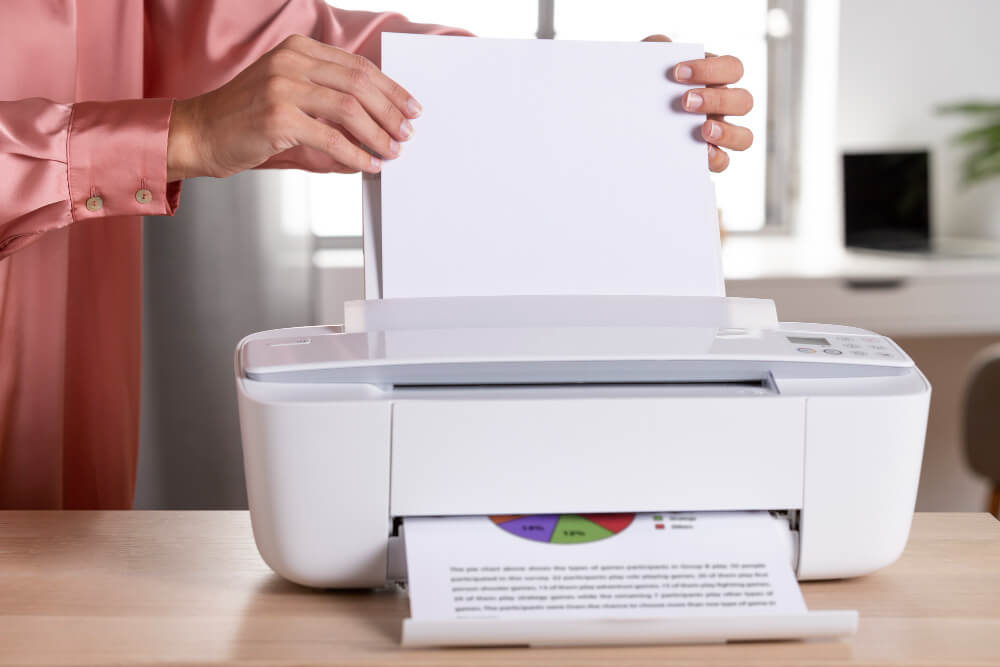
Most printer failures aren't sudden — they're the result of dozens of small neglects that pile up over years. The good news: keeping a printer healthy takes about ten minutes a month. This is our tech team's routine, refined over hundreds of service calls.
The 90/10 rule
Nine out of ten printer problems come from three things: dirty rollers, wrong paper, or firmware not being updated. Nail those and you'll rarely see the fourth.
Why maintenance matters more than you think
We inspect around 300 out-of-warranty printers a year. Roughly 65% of them could have been kept alive with basic care — the failures were completely preventable. The economic argument is even more direct: five minutes of preventive cleaning is worth $200 – $600 in avoided repair or replacement.
Weekly (2-minute) checks
1. Print at least one page
Especially critical for inkjets. Unused nozzles dry out — a page a week costs pennies of ink and stops clogs before they start. Set a recurring calendar reminder if that's what it takes.
2. Reload paper properly
Don't just top up. Take the remaining paper out, fan the new stack, add it under the old, and re-align the guides. This alone prevents most double-feed jams.
Monthly (15-minute) checks
3. Clean the pickup rollers
Dusty or worn pickup rollers are the #1 cause of chronic jams. Once a month:
- Open the printer and locate the pickup rollers (usually rubber, at the top of the paper tray).
- Wipe them with a lint-free cloth dampened with distilled water — never alcohol on rubber rollers, it hardens them.
- Let them dry for 5 minutes before reloading paper.
4. Wipe the exterior + vents
Printers pull dust through their vents. A dry microfibre cloth around the outside and along the vents keeps the internal fan from turning that dust into a felt mat over the electronics.
5. Run a nozzle check (inkjets only)
Every inkjet has a nozzle-check test page in its menu. Compare it against the reference pattern; if a colour is missing lines, run one cleaning cycle. Don't stack cleaning cycles — one, then check, then decide.
Quarterly (30-minute) checks
6. Clean the scanner glass and ADF
For MFPs: streaks on scans usually come from a smudged strip on the ADF (long thin glass alongside the flatbed). Wipe both with a lint-free cloth and glass cleaner (sprayed on the cloth, never on the glass).
7. Clean the print head (deep clean)
On ink-tank inkjets, run the "power cleaning" cycle from the printer menu once a quarter — it uses more ink than a regular cleaning but resets a partially clogged head. On lasers, quickly wipe the corona wire with the built-in cleaner (a small handle on the drum unit).
8. Vacuum the interior
Use a low-power vacuum with a soft brush attachment. On lasers, use a specialised toner vacuum — regular vacuums explode toner particles into fine dust and clog the motor. Never use compressed air.
Paper: the underrated variable
Paper choice affects longevity more than any other consumable. Three rules:
- Use printer-rated paper. "Multipurpose" paper (75 gsm+) works for anything. Ultra-cheap 60 gsm paper causes more jams and dulls rollers faster.
- Store paper in a warm, dry spot. Damp paper sticks together; humid paper wrinkles in the fuser. Never store paper in a garage or basement.
- Let cold paper acclimatise. Paper brought in from a cold delivery van needs 24 hours in room temperature before use — otherwise condensation causes jams.
Keep firmware fresh — safely
Firmware updates fix real bugs — including security issues. Set a reminder to check quarterly. But three rules to avoid bricking:
- Never install a firmware update over Wi-Fi with a shaky connection. If it disconnects mid-update, the printer is dead. Use Ethernet or USB.
- Never turn the printer off during an update, even if it seems stuck.
- Wait a week after a big update release — early adopters catch the rare update that breaks something.
"Cleaning is the compound-interest of printer ownership. Fifteen minutes a month for five years is a printer that outlives its warranty by half a decade."
If you rarely print — special rules
Occasional-use printers (a handful of pages a month) need slightly different care to avoid dried nozzles or hardened toner:
- Inkjets: print a small colour test page once a week. If you're going away for 3+ weeks, leave the printer on standby — most models auto-cycle their heads to prevent drying.
- Lasers: print at least one page a month to prevent toner clumping in the cartridge. Store the printer in a low-humidity spot.
When to repair vs replace
Rule of thumb: if the repair costs more than half the price of a comparable new printer, replace. Common exceptions:
- Enterprise printers are worth repairing well past this point — parts are modular and the platform outlives 5+ generations of consumer printers.
- Dedicated photo printers with unusual ink systems are worth fixing; there's often no equivalent replacement.
- Bricked firmware is almost always fixable via a warranty claim or (out of warranty) a manufacturer service centre for $80 – $150.
FAQ
Are name-brand cleaning kits worth it?
The physical cleaning wipes and swabs are; the "manufacturer's cleaning solution" usually isn't — a lint-free cloth and distilled water do the same job for 90% of tasks.
How often should I replace pickup rollers?
On average, every 30,000 – 50,000 pages. If your printer's page counter isn't visible, that's roughly every 3 – 5 years for a home printer, or annually for a busy office. Replacement rollers are $20 – $60 and swap in 10 minutes.
My printer keeps saying "low ink" but the page count is minimal — why?
Almost every printer over-reports low ink to sell you cartridges earlier. On most models the printer will keep working for another 50 – 100 pages after the first warning, and the actual empty-cartridge point is often 30% of ink still remaining. Don't panic; keep printing until quality drops.
Is it OK to leave my printer on all the time?
Yes. Modern printers use less than 3 W in standby, and constantly power-cycling them wears the fuser (lasers) or dries the heads (inkjets) faster than leaving them on. Just enable the sleep timer.