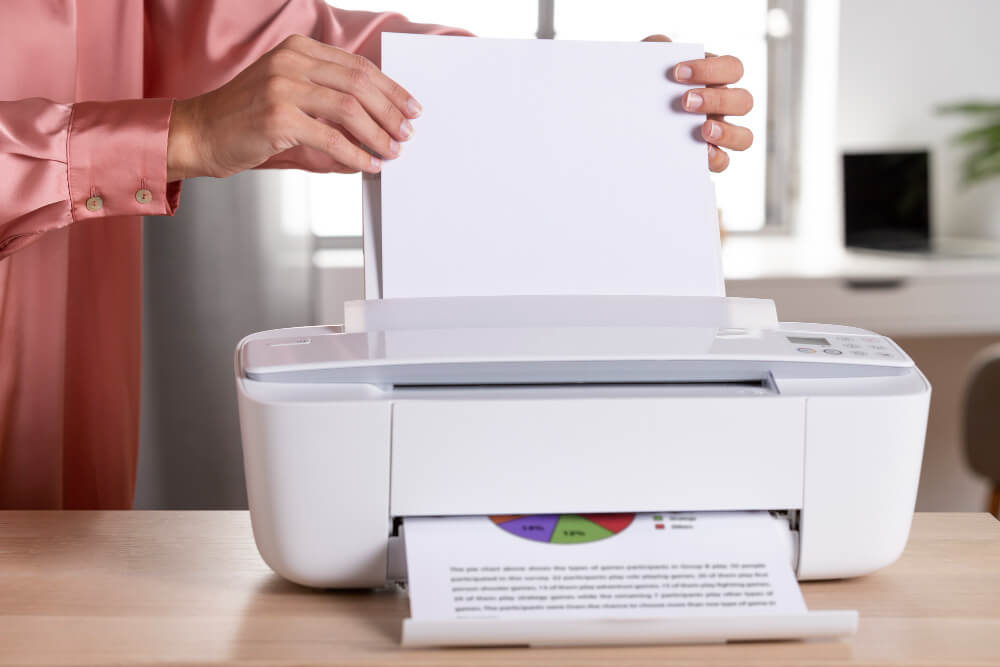
A paper jam is the single most common printer problem we see, and it's also the one people damage their printers trying to fix. Yank a jammed sheet the wrong way and you can tear rollers, distort the fuser, or leave shreds inside that jam the printer again five minutes later.
This guide is the exact process our repair tech, Diego, uses when a customer calls with a jam. It works on any printer — inkjet, laser, big or small — and takes about 5 minutes.
Rule zero
Always pull jammed paper in the direction it was travelling. Pulling backward — even a little — is what damages rollers and gears.
Before you touch anything: safety first
- Turn the printer off and unplug it from the wall. For laser printers this is non-negotiable — the fuser inside runs at up to 200°C.
- Wait 5 minutes. Let hot components cool. Lasers especially.
- Have on hand: a small flashlight, a pair of tweezers (blunt-tip), a clean lint-free cloth, and a bowl for pieces you extract.
- Remove jewellery that could scratch internal panels.
Step 1: locate the jam
Modern printers usually tell you which zone is jammed (e.g. "Tray 2", "Rear door", "Duplex unit"). If yours doesn't, open the printer in this order — the jam is almost always found by step 3:
- Front cover / output tray
- Rear access door
- The paper tray itself (pull all paper out and check the feed opening)
- For multifunctions: the ADF cover on top
- For duplex printers: the duplex unit (usually a slide-out drawer at the back)
Step 2: remove the paper — the right way
Once you can see the jammed sheet, look at which direction the paper was moving. Grip the paper with both hands, near the sheet's centre if possible, and pull steadily and slowly in the direction of travel. Do not jerk — a smooth pull avoids sudden roller slip.
If the paper won't move, don't fight it. Instead:
- Rotate the manual roller (marked with a green knob on most lasers, a coloured dial on many inkjets) to advance the paper another 1 – 2 cm and try again.
- If a corner is torn, gently open the next zone and pull the paper from there instead.
Do not
Do not use scissors, screwdrivers or ballpoint pens to fish out paper. Even a small scratch to the fuser sleeve or drum surface will cause streaks on every page you print for the next 10,000 sheets.
Step 3: check for stray pieces
Torn corners hide in the least obvious spots — the wide edges of the paper path where the rollers separate. With your flashlight:
- Look along the entire path from tray to output tray.
- Look inside the duplex unit if you have one.
- Look under the toner cartridge (lasers) or the print head (inkjets).
- Rotate every accessible roller by hand and watch for stuck bits.
Step 4: reset the printer
Even after clearing the jam, the printer may still show the error. To reset it fully:
- Close all covers you opened, in the same order you opened them.
- Reload paper into the tray, making sure the stack is straight and the guides touch the paper on both sides — not squeezing.
- Plug the printer back in and turn it on.
- Let it complete its warm-up cycle without printing (about 30 seconds for inkjet, 60 – 90 for laser).
- Print a test page from the printer's control panel — not from your computer yet. This confirms the mechanics are working before you send a job.
Special case: inkjets and the carriage
On inkjets, the print head sits on a moving carriage above the paper. Paper sometimes jams under this carriage. Never force the carriage — instead:
- Turn the printer on with the top cover open.
- The carriage will move to the centre for cartridge access.
- Turn the printer off with the carriage still centred.
- Now the carriage is free to slide by hand — gently move it left, remove the paper, then move it back.
Special case: lasers and the fuser
The fuser is the hot roller assembly near the rear of a laser printer. Paper jammed inside the fuser is the trickiest to clear because the paper often melts onto the roller. If a sheet is wrapped around the fuser:
- Ensure the printer has cooled for at least 10 minutes.
- Open the rear panel and locate the fuser (it usually has two green release handles).
- Release the handles to drop pressure on the roller.
- Rotate the roller by hand to feed the paper out.
- If any toner smudged onto the roller, wipe it with a dry lint-free cloth — never wet.
How to stop jams for good
90% of paper jams have the same three causes. Fix these and you'll go months without an incident:
- Fan your paper stack. Before loading a new pack of paper, fan through the sheets to separate them. A stuck-together pair is a jam waiting to happen.
- Set the guides correctly. Paper guides should touch both edges of the stack, but not squeeze it. Too loose lets paper skew; too tight causes double-feeds.
- Match the paper to the setting. If you load cardstock but the printer thinks it's plain paper, the feed timing is wrong and you'll jam within a few pages. Always set the paper type in the printer's control panel.
Longer-term:
- Store paper flat, in its wrapper, away from humidity. Damp paper is jam paper.
- Once a month, clean the pickup rollers with a lint-free cloth and a drop of water (dry them before re-inserting).
- Replace worn feed rollers every 30,000 – 50,000 pages — most manufacturers sell them as a $30 service kit.
"The single best thing you can do for a paper-jam-prone printer is switch to a better paper. Cheap paper is the #1 cause of chronic jams we see."
FAQ
My printer still shows a jam warning after I cleared everything — what now?
Turn it fully off (unplug from the wall for 30 seconds), then back on. If the warning persists, a paper sensor may be tripped by a scrap of paper or debris — carefully inspect the small plastic flags along the paper path with a torch and clear anything blocking them.
Should I use compressed air to clear the printer?
No. Compressed air pushes paper dust and toner deeper into the printer. Use a soft brush or a vacuum with a HEPA filter designed for electronics.
How often is "too often" for jams?
Once every couple of thousand pages is normal. More than once a week is a symptom of paper choice, humidity, or worn pickup rollers — start there before assuming the printer is at fault.